Tuesday, 8 April 2008

Sound in Flash CS3


In flash, sometimes you might want to add a sound using actionscript, for example:- background music that repeats for ever, or a sound that plays only when you shoot a gun. I'm going to show you how to make this happen!


1st, find a sound or some music that you have in your computer, when you have found one remember its file path.
Next open up flash cs3 and click File:Import:Import to Library. and then choose your sounds file path from the menu that pops up. 
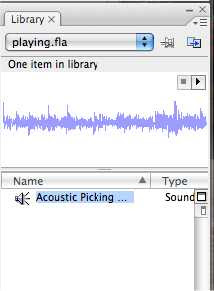


Then, press control + L to open the library and something like this should appear. 

Obviously the sound name will be different, but it will look mostly the same as this.

Next right click on the sound name (highlighted) and choose linkage from the menu that appears.
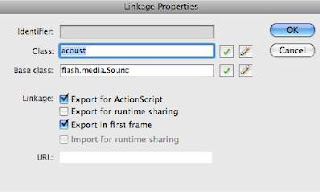


A box should pop up that looks something like this, but without the "Export for ActionScript" checkbox ticked. 
Check this and then write a class name in the box that is highlighted on the screenshot. But you have to remember this, as we will be using it a bit later. I have called mine "acoust", so if you have problems with the script i suggest you use that name.


Now we are ready to make the sound play.

just 3 lines of actionscript are required to make the sound play.

import flash.media.Sound;
var sound:Sound = new acoust();
sound.play(0, 99);

I am not going to make a demo, as it will be quite CPU intensive and also it will interfere with the later experiments.

Line 1: importing the necessary classes for the sound to play.
Line 2: Setting up a new variable "sound", which is a copy of the class "acoust" that we set up earlier.
Line 3: Setting the variable "sound" to play 99 times starting at 0 miliseconds.

Now lets make some buttons that can stop and play the sound.


This script is a lot more complicated than the 1st script that i showed you this is because i have had  to play and stop the sound on command. For this i had to add 2 more variables, one to see if the sound was playing and another one that is a soundchannel variable. some code:-


import flash.media.Sound;
var sound:Sound = new acoust();
var channel:SoundChannel;
var soundisplaying:Boolean = false;
playbut.addEventListener(MouseEvent.CLICK, playsound);
stopbut.addEventListener(MouseEvent.CLICK, stopsound);
function playsound(event:Event):void {
if (soundisplaying==false) {
channel = sound.play(0, 99);
soundisplaying = true;
}
}
function stopsound(event:Event):void {
channel.stop();
soundisplaying =false;
}


The first thing that you will notice is the new soundChannel variable "channel". This sets up a new channel which i will use to hold the sound.play() function.

Next, you will notice the "soundisplaying" boolean variable, this quite literally tells us if the sound is playing. I set this up to stop multiple versions of the sound playing when you pressed the play button. it is set to false to start with.

The next 2 lines are adding the event listeners for when the buttons are pressed. i have explained buttons in more detail in this tutorial.

You can see that i have added 2 new functions for controlling the sound. 

The first one plays the sound, but only is the boolean soundisplaying is set to false, that is what the if statement is for. The channel = sound.play is the same function as before, then i set the soundisplaying variable to true, so the user can't play the sound more than once.

The next function is the one that stops the sound playing. You cannot directly stop the sound, so you have to stop the soundChannel that it is attached to, so the code is channel.stop().
I also set the soundisplaying boolean to false, so that if you click the play button you can restart the sound.

thats it so far, next time i will be focusing on pausing and then replaying the sound from the pause point.

Saturday, 29 March 2008

creating a platform game in as3 part 5

Welcome back, At the end of the last tutorial i wondered what would happen if we had a platform that you could jump underneath from.


As you can see, i have made the map a lot more complicated, and the simulation runs quite accurately until you go under the overhang on the left side. Where you can jump through the bottom of that platform. Lets change that.

We need to add a hit detection for when the top of the character hits the bottom of the land.


Ok, now you can't jump up through platform bottoms, but if you jump sideways into the hovering platform, you float down.

I will think on this matter for the next step in the tutorial.

Friday, 28 March 2008

creating a platform game in as3 part 4

In the end of the last post we had a problem where the character vibrated. This was because when ever the character touched the floor i made it move up by one pixel. to rectify this i will make another hittest that detects when the character is one pixel off the floor and only calculate the velocity of the player if it returns false.


Some code:-

function run(event:Event) {
velocity+=gravity;
if (land.hitTestPoint(char.x, char.y+char.height/2, true)) {
velocity = 0;
char.y--
}
if (!land.hitTestPoint(char.x, char.y+char.height/2+1, true)) {
char.y += velocity;
} else {
velocity=0;
if (attemptJump==true) {
char.y--;
velocity =-5;
}
}
if (goleft==true) {
char.x+=lspeed;
}
if (goright==true) {
char.x+=rspeed;
}
}

This is only the new run function because that's all i have changed.

I have removed the else statement that i created last time to calculate the velocity and moved it to the new hitTest where i calculate if the character hits one pixel above the land.

The other thing that i have changed is to move the attemptjump function to the new hitTest and add to it another char.y-- which means that the character will be able to jump with the new hitTest in place.

Heres a demo.


Ok thats that problem fixed. Now i have noticed that when you walk into a steep wall, you seem to go into it for a bit and then float to the top if you stop. To fix this we can make it so that you can't walk up steep hills. We can do this 2 ways, either by creating 2 more  movieClips, 1 either side of the character and calculating the gradient in between them. Or we can use the hitTestPoint function again and use it to calculate a point that stops the player moving if the hill is too steep. i have chosen the latter because it is easier and will run quicker.

First we need to change the land movieClip so that it has some steep hills at either side of the screen. 
Next we have to create the new hitTest functions. 

some code, just the new run function again.


function run(event:Event) {
velocity+=gravity;
if (land.hitTestPoint(char.x, char.y+char.height/2, true)) {
velocity = 0;
char.y--;
}
if (!land.hitTestPoint(char.x, char.y+char.height/2+1, true)) {
char.y += velocity;
} else {
velocity=0;
if (attemptJump==true) {
char.y--;
velocity =-5;
}
}
if (!land.hitTestPoint(char.x-char.width/2, char.y+char.height/4, true)) {
if (goleft==true) {
char.x+=lspeed;
}
}
if (!land.hitTestPoint(char.x+char.width/2, char.y+char.height/4, true)) {
if (goright==true) {
char.x+=rspeed;
}
}
}

As you can see from the code i have put the new hitTest functions in front of the move left and right functions. Lets look at the first one, the "goleft" function. i have put a conditional statement in front of the old goleft function. Note the exclamation mark in front. This means that you can go left only if the character's left hand side, a quarter up from the foot, is not touching the land. 
It is nearly the same code for the goright function, but if look carefully, you will see that instead of a "char.x-char.width/2" we have a "char.x+char.width/2" this is just declaring a point on the right side instead of the left.

Heres a demo


As you can see, the demo runs fine, you can't walk up steep hills but you can still jump up them. Thats fine for now.

In the next tutorial i am going to see what happens if i add a floating platform that you can go underneath and jump on to.